

複数案を比較する
テキストやクリエイティブの複数案を同じオーディエンスに見せ、どれが好まれるかを比べます。
プリファレンステストでは、メッセージ、コンセプト、ネーミング、デザインなどの複数案の中から、1つのオーディエンスに好きなものを選んでもらいます。あとで実際の環境でテストする案を絞り込むのに使います。
比較する案を用意する
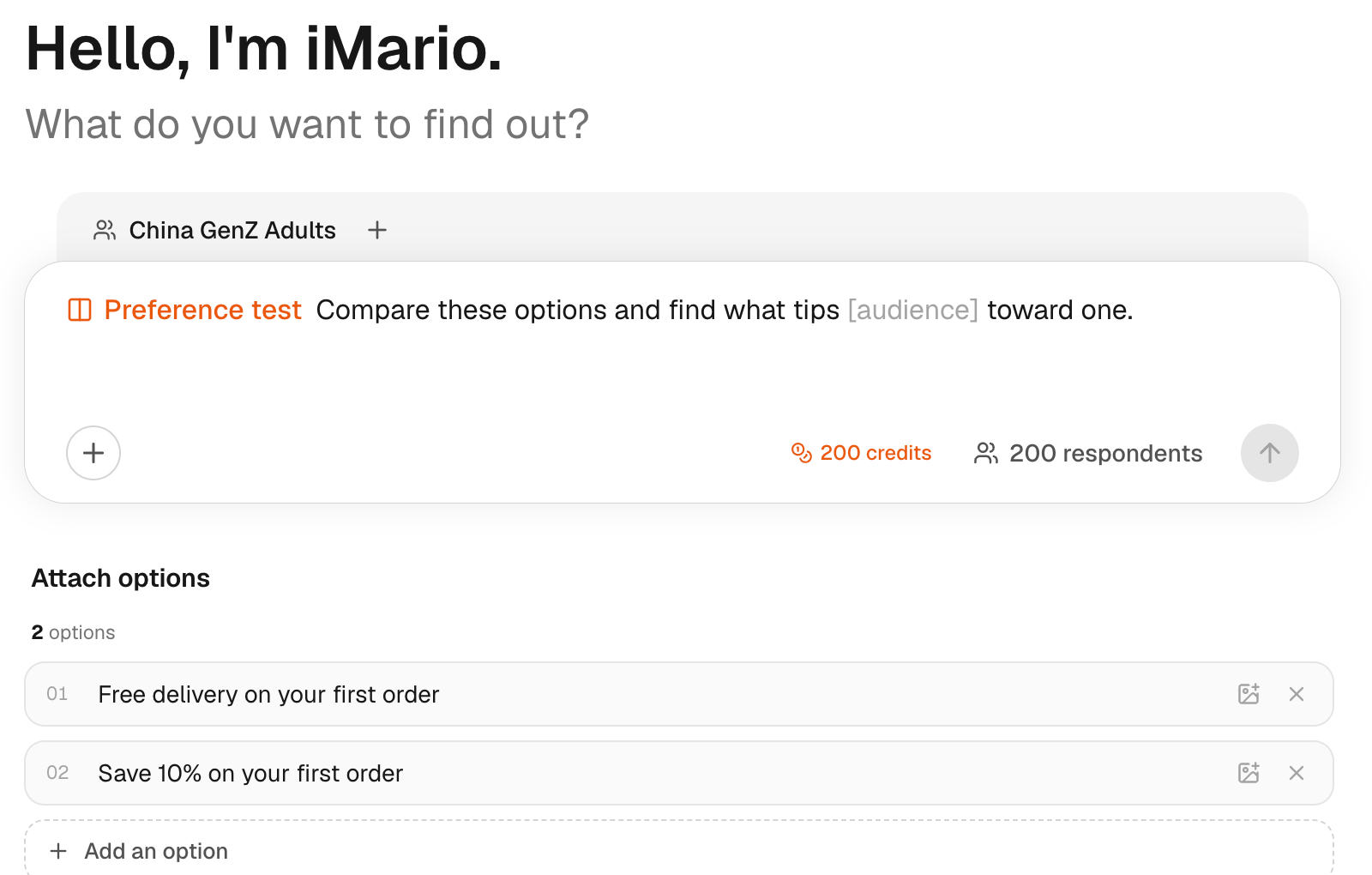
- サイドバーで New Task をクリックします。
- 入力欄の Add content(+)をクリックし、続けて Preference test をクリックします。入力欄にプリファレンステストの目的が表示され、その下に Option 1 が並びます。
- 1つ目の案を用意します。テキストを入力するか、Add an image to option 1 をクリックして画像を選びます。案には短いラベルを付けます。
- 2つ目以降の案は、1つごとに Add an option をクリックして追加します。案は最低2つ必要です。
- Select target audience をクリックして、オーディエンスを選びます。入力欄の上に、オーディエンス、回答者数、クレジットの見積もりが表示されます。
- 目的のプレースホルダーを、対象のオーディエンスと知りたいことに書き換えます。
- 回答者数を変える場合は、表示されている人数をクリックして新しい数を入力します。
- 回答者数とクレジットの見積もりを確認してから、Run をクリックします。
たとえば、読み手が最初に詳しく見てみたくなるのはどちらの特典かを聞くなら、次のような案を用意します。
- 「初回のご注文は送料無料」
- 「初回のご注文は10%オフ」
どの案も単独で判断できるところまで仕上げ、結果を見てすぐにどの案かわかるラベルを付けます。案には画像を含めることも、画像だけにすることもできます。画像だけの案には、ラベルが自動で付きます。
1回の比較では、案をすべてテキストか、すべて画像にそろえます。画像と1行のテキストを比べる組み合わせや、同じ案を2回入れた組み合わせは、iMario では実行できません。ブランド名とスローガンを比べる場合のように、案どうしが同じ1つの選択の候補になっていないときは、実行前に iMario がその旨を伝え、確認を求めます。
複数の画像やメッセージを並べてプリファレンステストを実行し、どれが選ばれるかを確かめます。各ステップでハイライトされた箇所をクリックするか、「次へ」で進みます。
この操作ガイドの設定手順は、上の番号付きの手順にも書き出しています。
比較結果を正しく読む
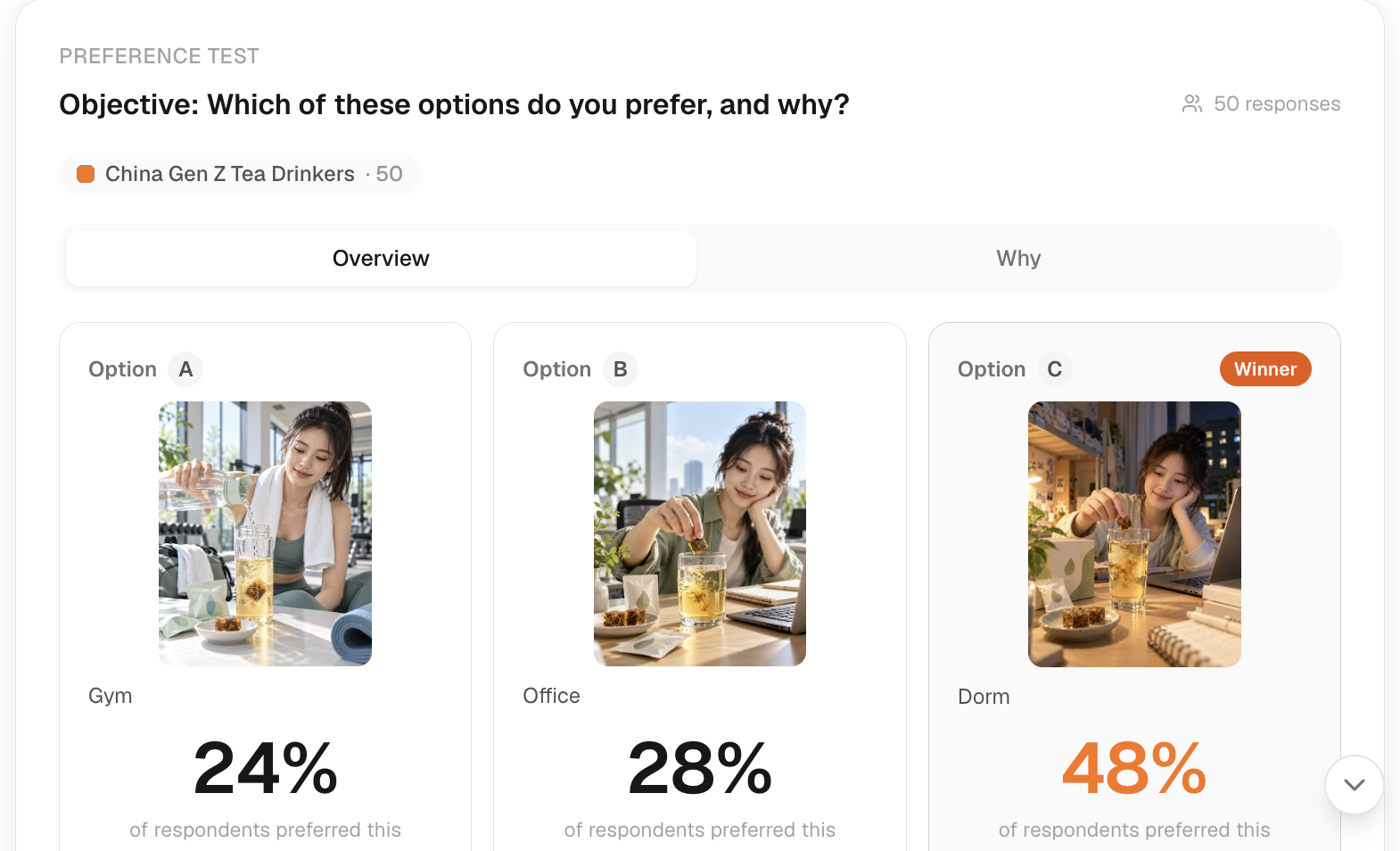
Overview タブには、各案を選んだ回答者の割合が表示され、トップの案には Winner が付きます。選ばれた理由を読むには Why をクリックします。
オーディエンスと質問は、すべての案で同じにします。案どうしの違いが1か所でない場合は、結果をその案全体への好みとして報告してください。見出しや画像など、1つの要素だけの効果を切り分けた結果ではないからです。わずかな差は、さらに調べるきっかけにはなっても、その案が勝った証拠にはなりません。案ごとに誰が選んだかは、Explorer(回答の分析画面)で確認できます。
費用と次のステップ
Run をクリックする前に、クレジットの見積もりを確認します。プリファレンステストは、選択肢ごとに課金されるアンケートの複数回答の質問とは課金方法が異なります。詳しくは料金とクレジットを参照してください。
案を改良しながら繰り返す場合は、バージョンごとに何を変えたかを記録しておきます。結果は、適切な成果指標を設定した実際のテストで確かめてください。AI がシミュレーションした好みを、コンバージョンの予測として報告しないでください。詳しくは実データで検証するを参照してください。