

Connect Intercom
Import the support conversations you pick from Intercom, so an audience answers in the words your customers used unprompted. What iMario reads, how conversations reach the right person, and how to remove the app and its data.
このページの翻訳はまだありません。英語の原文を表示しています。
Support conversations are the one place customers say what they think without being asked. iMario reads the Intercom conversations you pick and turns them into evidence for an audience, so that audience raises the objections your customers actually raised, in their words.
The app is read-only. It never sends a message, replies to a conversation, changes a tag, or writes anything back to your workspace.
Before you start
- You are an admin of the Intercom workspace, or someone who can authorize an app on it.
- Your workspace has conversations worth reading. A handful of one-line chats will not carry an audience; a few hundred real support threads will.
- Know your region. Intercom hosts workspaces in the US, the EU and Australia. iMario asks which one you are on, because the EU and AU workspaces answer on different addresses.
Add the app
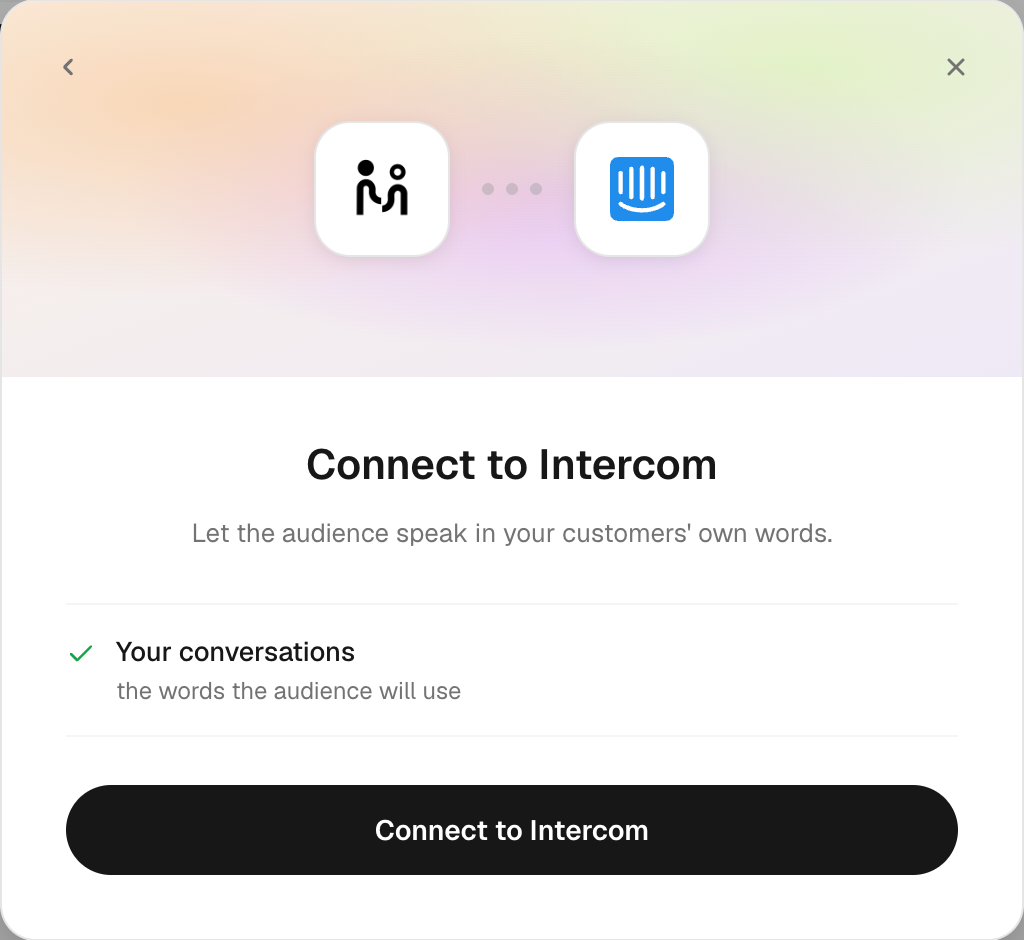
You can start from either side. Both end in the same place.
From the Intercom App Store: open the iMario listing and click Install. You land on iMario; sign in or create an account, and iMario opens with Intercom's permission list already showing. Continue from step 4 below.
From iMario:
- Sign in to iMario and open Create audience.
- Click Connect a data system, then choose Intercom under Support & conversations.
- If your workspace is hosted in the EU or Australia, set Region to
euorau. Leave it blank for the US. - Click Connect to Intercom. Intercom's own authorization window opens and names the workspace you are about to connect.
- Click Authorize access. You are returned to iMario.
- Your conversations are listed with their subject, the customer or the channel they came in on, and the date. Search the list if it is long, and tick the ones to use.
- Click Import.
If a step does not go as described, see Troubleshooting.
What iMario reads
Intercom's authorization page lists the permissions the iMario app is set up with. Intercom sets them in the app's own settings rather than in the authorization link, so every workspace sees the same list.
Within them, iMario reads only the conversations you ticked: each message in the thread, and the name, type and email address of whoever wrote it. It never lists your people on its own, and does not read your companies, tags, teammates, articles or settings, or any conversation you did not pick.
Use it
Turn support threads into an audience's own words
Use case: you want an audience that pushes back the way your customers push back, using their vocabulary rather than your marketing's.
Prerequisites: conversations exist in the workspace, and you picked them.
The customer's side of each thread is kept as their answers. Replies from your team, and anything a bot said, are read so the conversation makes sense but are never treated as a customer's words. All the threads you picked arrive as one source in the audience rather than as hundreds of tiny files.
Attach a conversation to the customer it was with
Use case: an account's complaints should come out of that account's own individual in the audience, not out of the audience as a whole.
Prerequisites: Intercom holds an email address for the contact. A conversation from an unidentified visitor has no address to hold.
Nothing to configure. The address is used as a join key: a customer who is also in the CRM records or the CSV roster you built the audience from is recognised as the same person, and their conversation becomes part of how that person answers. When there is no address, the conversation still shapes how the whole audience speaks and is not put on any individual.
Bring in later conversations
Use case: support keeps arriving after the audience was built.
An import happens once. iMario does not poll your workspace afterwards and never fetches a conversation you did not tick. To add threads from since, connect Intercom again and tick the new ones.
Remove the app
Either side works, and they do different things, so most people do both.
Remove it in Intercom: Settings → Integrations → App store, find iMario, and click Uninstall. This revokes the token, so iMario cannot read your workspace again.
Remove it in iMario: open the audience, find the connected source, and remove it. Removing the last file the connection produced disconnects it: the imported conversations, the stored credential, and every row those conversations put onto individuals in your audiences are deleted together. If any step fails, nothing is disconnected and you are told, rather than being told your data is gone when it is not.
What removal does not undo. An audience that was built keeps existing, and reports you already ran keep their text: a report is a record of what was said when it ran. The Intercom words come off the individuals, so the audience stops answering from them. To delete the audience or the reports as well, delete them in iMario, or write to [email protected] and we will remove them for you.
Troubleshooting
The conversation list is empty. Most often the region is wrong: an EU or AU workspace answers on its own address, and a US connection to it finds nothing. Disconnect, connect again, and set Region. Otherwise the workspace genuinely has no conversations the token can see.
Everything imports without a customer address. The conversations came from unidentified visitors, who have no address in Intercom. Their words still shape the audience; they are simply not attached to an individual.
A conversation imported with almost no text. Threads whose messages are images, attachments or bot bookkeeping have little to read. iMario reads words, and skips the parts that carry none.
Authorization fails or returns an error. Start again from Create audience; the authorization link is single-use. If it keeps failing, check that you are signed in to the Intercom workspace you meant to connect.
Still stuck. Write to [email protected] with the workspace name and roughly when you tried.