

Connect Feishu or Lark
Feishu Minutes transcripts ground your audience in real customer calls. Your admin creates a free app in your own Feishu organisation, which takes a few minutes and keeps the access entirely yours.
Feishu Minutes holds the transcript of every meeting your team recorded. Connecting it lets an audience answer in the words your customers actually used.
This page covers Lark too. Lark is the same product on its own servers, and an app registered in one cannot read the other, so iMario works out which you are on from the links you paste. Nothing extra to choose: a feishu.cn link goes to Feishu, a larksuite.com link goes to Lark. Create the app in whichever console you already use (open.feishu.cn/app or open.larksuite.com/app).
Feishu scopes an app to one organisation, so there is no shared iMario app to authorize: your own admin creates one inside your Feishu, and iMario uses it to read only what you point it at. It is free, it takes a few minutes, and the access stays under your control.
What your admin does, once
-
Open your Open Platform console (open.feishu.cn/app for Feishu, open.larksuite.com/app for Lark) and create a custom app (企业自建应用). Name it something your colleagues will recognise, such as "iMario".
-
In 凭证与基础信息 (Credentials & Basic Info), copy the App ID and App Secret. These are the two values iMario asks for.
-
In 安全设置 (Security Settings), add this exact redirect URL:
https://api.imario.ai/api/connections/callback -
In Permissions & Scopes, search for each of these codes and add it. The codes are the same whichever language the console is in:
Scope code Called minutes:minutes.basic:readObtain basic information of Minutes minutes:minutes.transcript:exportExport minutes transcript text content Add them under user identity, not app identity. Do not use
minutes:minute:download: it is the old permission and Feishu no longer opens it to new apps. -
In Version Management & Release, create a version and submit it. A workspace admin approves it, and the app is live inside your organisation.
Nobody outside your organisation can use this app, and iMario never sees anything in your Feishu that you do not name in the next step.
Connect in iMario
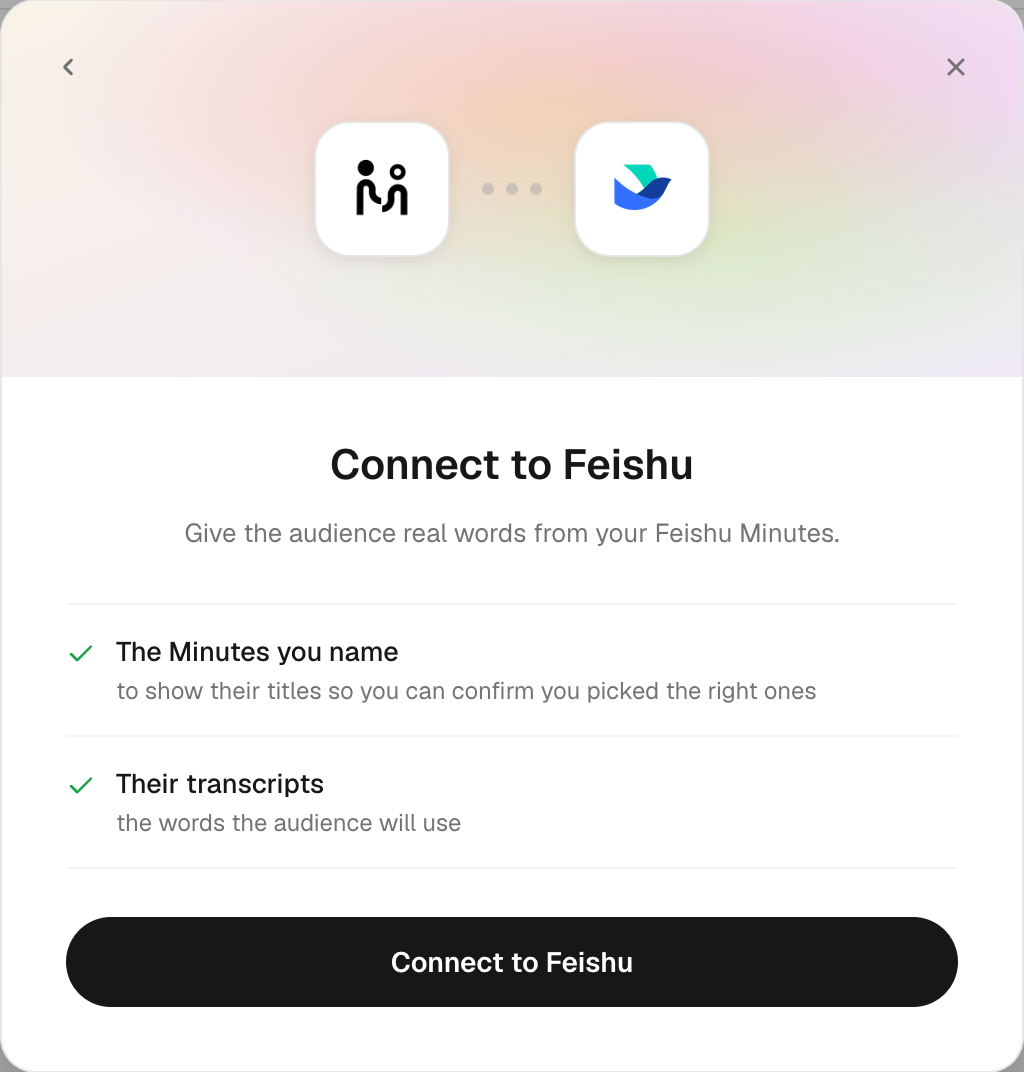
- In Create audience, click Connect a data system and choose Feishu.
- Paste the App ID and App Secret from step 2.
- Paste the link of each Minutes recording you want to use, one per line. Open the recording in Feishu and copy the address bar; it looks like
https://acme.feishu.cn/minutes/obcn…. - Click Connect to Feishu and approve on Feishu's own page.
- iMario reads each link back with its real title and length, so you can see you pasted the right ones. Tick them, then click Import. To add recordings made later, connect again and paste their links.
Connect a data system
Provider authorization screens are not reproduced here.
Connect Feishu and choose what to import
Open Connect a data system. Choose an available provider.
Why links, and not a list
Feishu's API answers questions about a recording you name, but it has no endpoint that lists a person's recordings. Rather than guess, iMario asks for the links. To add more later, connect again and paste the new ones.
What iMario reads
Only the recordings you paste. For each one: its title, its length, and its transcript text. Never your other Minutes, your documents, your chat, or your calendar. Nothing is written back to Feishu.
Feishu names the speakers in a transcript but publishes no email address for them, so a Feishu recording shapes how the whole audience speaks rather than being attached to one individual. To attach words to a specific customer, use a source that carries an address, such as a survey export or a Zoom recording with participants.
Troubleshooting
"Could not be read" next to a link, or "you do not have permission" after a sync. The token does not carry the Minutes permissions. Either they were not added (step 4), or the version was not released (step 5), or they were added after you connected. In the last case, remove the Feishu source in iMario and connect again.
The authorize page says the app is not available. The version has not been approved yet. A workspace admin approves it in Version Management & Release.
"App not found", or the authorize page is on the wrong domain. The app was created in one console and the links point at the other. An app registered on Feishu cannot authorize a Lark tenant, or the reverse. Create the app in the console that matches your Minutes links.
No transcript in the file. The recording has no transcript in Feishu itself. Minutes only transcribes when the meeting was recorded with transcription on.