

Connect a Data System
Build an audience from your own data. Connect Zoom, Google Drive, Qualtrics or HubSpot, approve exactly what iMario reads, and import the recordings, surveys and files you pick.
An audience generated from a brief alone is a good guess. An audience grounded in your own material stops guessing: it answers in the language your customers actually use, and reflects the objections and priorities that genuinely came up.
Connecting a data system is how you give it that material. iMario reads from the systems you already have, you approve exactly what it reads, and nothing is ever written back.
Connect a system
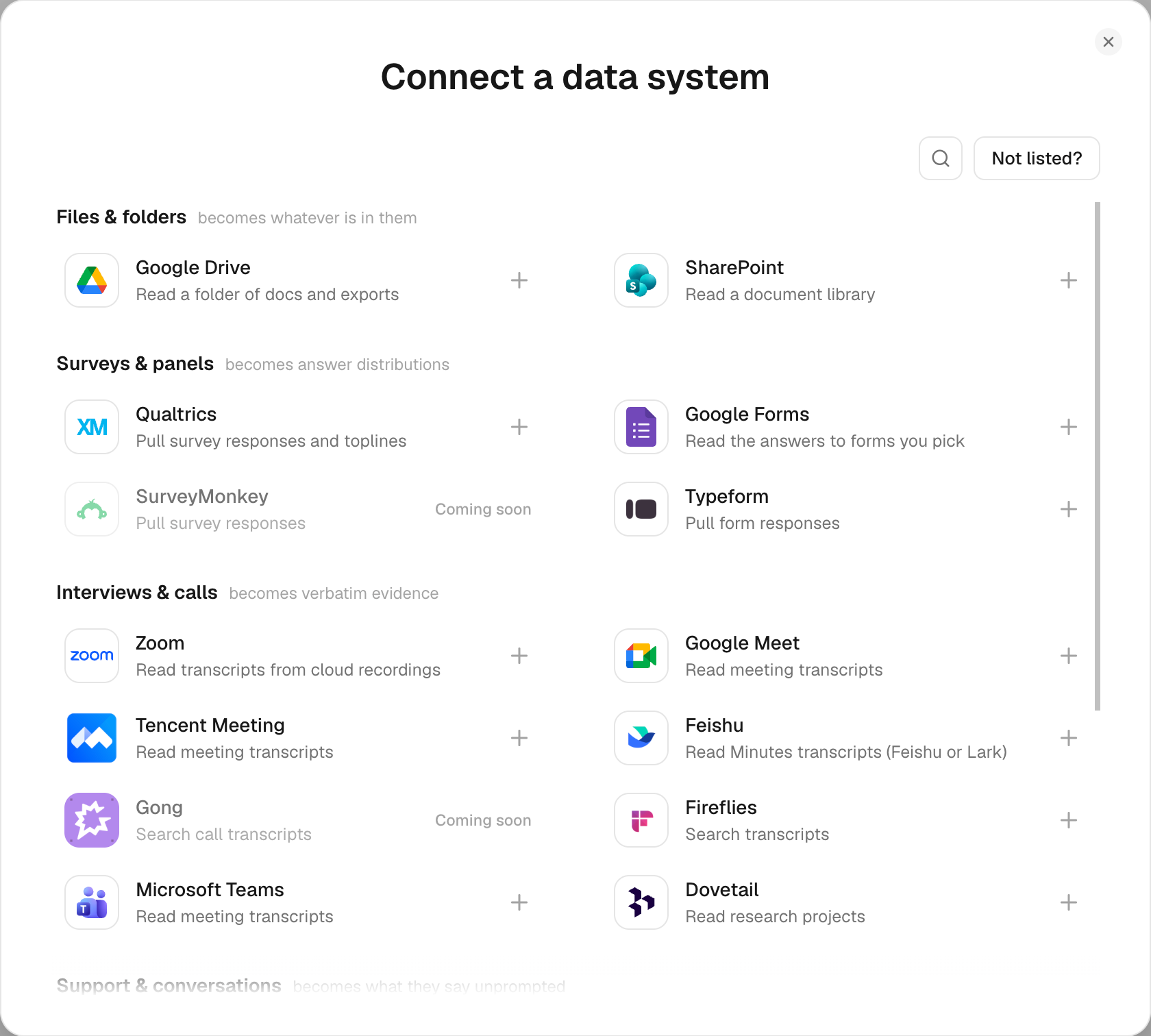
Open Create audience, then click Connect a data system. The modal takes three steps.
1. Pick the system. The catalogue is grouped by what the data becomes, not by vendor category:
| Group | What it becomes | Systems |
|---|---|---|
| Files & folders | whatever is in them | Google Drive, SharePoint |
| Surveys & panels | answer distributions | Qualtrics, Google Forms, SurveyMonkey, Typeform |
| Interviews & calls | verbatim evidence | Zoom, Google Meet, Microsoft Teams, Gong, Fireflies, Feishu, Tencent Meeting, Dovetail |
Google Meet and Microsoft Teams are picked from your calendar rather than from a list of recordings: neither vendor lets a signed-in app ask "what meetings do I have?", and the calendar entry is also where the attendees' addresses are, which is what attaches a call to the customer it was with. | Support & conversations | what they say unprompted | Zendesk, Intercom | | Customer records | who is in the audience | HubSpot, Salesforce, BigQuery, Snowflake, Shopify |
Systems we have not finished read Coming soon and cannot be picked. If yours is not here, Ask for one records which system you use — we build connectors in the order people ask for them. In the meantime, export from it and drop the file into the audience: a CSV or a transcript reads exactly the same as a connected one.
2. Approve what we read. Before the redirect, iMario shows one line per permission it is about to request, in plain language, with a toggle. You approve each one, then authorize in the provider's own window.
Some systems scope an app to a single organisation, so there is no shared iMario app to authorize: Feishu, Qualtrics, Zendesk, Salesforce and Tencent Meeting are all like this. For those the card asks for an app id and secret that your own admin creates, free, inside your organisation, and a link to the steps. They are stored encrypted and used only to reach your own account.
3. Pick what to import. The screen lists what is in your account right now — recordings, conversations, surveys, files, contact fields — with a search box when the list is long. Tick what you want. iMario counts each row from the provider's own answer, so a number here is what will actually arrive.
Two systems name their list differently, because their API has no list to read:
- Google Drive: click Choose files in Google Drive and pick them in Google's own window. iMario can see only the files you pick, nothing else in your Drive.
- Feishu Minutes: paste the link of each recording. See Connect Feishu.
Click Import.
Connect a data system
Provider authorization screens are not reproduced here.
Connect selected system and choose what to import
Open Connect a data system. Choose an available provider.
What the import does
Connecting a system imports what you ticked, once. Nothing is fetched again behind your back: iMario does not poll your Zoom, your Drive or your CRM after the import finishes. Keeping an audience current is a decision you make on the audience itself, not something the connection does on a timer.
Each item is pulled once, and the same recording, thread or file is never stored twice. Every file lands in the source list exactly as an upload would — a table gets its columns mapped, a transcript is read as passages — so a connected source and a dropped file are the same object from there on.
To bring in more later, connect the same system again and tick what is new.
Attaching words and answers to people
An imported file reaches the individuals in a built audience when it can say who it is about: a survey keyed by the customer id or email your records carry, a recording where the provider names the attendees, a support thread with the customer's address. Those words and answers go onto that person, and the next time they are asked something they answer from their real evidence, not from the old snapshot. A recording where nobody can be identified still shapes how the audience speaks, but is not put on any individual.
Keeping an audience current
Refreshing happens on the audience, not on the connection. Today that is Rebuild from latest customer records on the audience page: it re-reads the connected CRM as it is now and builds a new audience from it and everything else the old one used. The old audience, and every report that ran on it, stay exactly as they were; the connections move over to feed the new one.
New contacts change who the audience is, which is why this is a button and not a timer.
Imported files belong to the audience they built, exactly as an uploaded file does: they stay until you remove them, and a Rebuild reads them again. The only imported files iMario deletes on its own are the ones left behind by a Create audience session that was abandoned — a draft that never became an audience. Those are cleared after 30 days.
Disconnect
Open the audience, find the connected source, and remove it. Removing the last file a system produced disconnects it: the imported data, the stored credential, and every word or answer those files put onto individuals are removed together. If any step fails, nothing is disconnected and you are told, rather than being told your data is gone when it is not.
You can also revoke access from the other side at any time, in the provider's own installed-apps settings. Do both if you want the iMario copy gone as well: revoking on the provider's side stops future syncs but does not reach into iMario.
Zoom
Zoom is in the Interviews & calls group. iMario reads the transcripts of the cloud recordings you pick, and uses them as verbatim evidence for the audience.
For the full guide to adding the app, using it and removing it again, see Connect Zoom.
Before you start
- Your Zoom plan includes cloud recording, and audio transcript is turned on in your Zoom recording settings. A recording made before that setting was enabled has no transcript, and iMario cannot create one.
- You are connecting your own Zoom user account. iMario reads the recordings that account owns, not your whole organization's.
What iMario asks for
| Permission | Why |
|---|---|
cloud_recording:read:list_user_recordings | Your list of cloud recordings, so you can choose which to use |
cloud_recording:read:list_recording_files | The files of each recording, to find the ones that have a transcript |
cloud_recording:read:meeting_transcript | The transcripts themselves, which are the words the audience will use |
meeting:read:list_past_participants | Who was on each call, to attach it to the customer it was with |
user:read:user | Your Zoom account, to know whose recordings to read |
That is the whole list. iMario does not read your meeting content beyond recordings and their participants, your chat, your contacts or your account settings, and never joins, starts or records a meeting.
Connect
- In Create audience, click Connect a data system and choose Zoom.
- Review the permissions and click Connect to Zoom. A Zoom window opens.
- Sign in to Zoom and click Allow.
- Back in iMario, your cloud recordings that have a transcript are listed. Search the list if it is long, then tick the ones to use.
- Click Import. To bring in recordings you make later, connect Zoom again and tick them.
Who was on the call
iMario reads the participant list of each recording so a customer's words can be attached to that customer in your audience. Zoom only names participants who registered, came from a calendar invite, or were signed in; a guest who joined from a bare link has no address, and their recording shapes the audience's voice without being put on any individual.
Disconnect Zoom
Remove the source from the audience in iMario, which deletes the synced transcripts and the credential. To also revoke the app on Zoom's side, go to the Zoom App Marketplace, open Manage → Added Apps, find iMario, and click Remove.
Microsoft Teams
Teams is in the Interviews & calls group. iMario reads the transcripts of the Teams meetings you pick, and uses them as verbatim evidence for the audience.
Before you start
- Transcription was on during the meeting. Teams writes a transcript only when someone turned it on in the call; there is no way to produce one afterwards.
- A Microsoft 365 administrator has approved iMario once. Reading transcripts is a permission Microsoft reserves for admin consent, even though you are only reading your own meetings. The first person to connect sees "Need admin approval" and can request it from that screen; after an admin approves, everyone in the organisation connects normally.
- Your tenant allows Graph access to transcripts, with speaker attribution. These are two separate Teams admin settings and both are off by default: in the Teams admin center, Meetings → Meeting settings → Transcript API access, turn on Microsoft Graph access, then Configure and turn on Include speaker attribution. Without the first, every transcript read is refused and iMario tells you so. Without the second, the transcript arrives with no speaker names, so the words still shape how the audience talks but cannot be attached to the person who said them.
- The meeting is on your own calendar. iMario reads the meetings you organised or were invited to, not your whole organisation's.
What iMario asks for
| Permission | Why |
|---|---|
Calendars.Read | Your calendar, which is the only list of your meetings Microsoft will give a signed-in app — and where the attendees' addresses are |
OnlineMeetings.Read | The meeting behind a calendar entry, to find its transcripts |
OnlineMeetingTranscript.Read.All | The transcripts themselves, which are the words the audience will use |
offline_access | To stay connected while the import runs |
That is the whole list. iMario does not read your chat, your files, your mail or your colleagues' calendars, and never joins, starts or records a meeting.
Connect
- In Create audience, click Connect a data system and choose Microsoft Teams.
- Review the permissions and click Connect to Microsoft Teams. A Microsoft window opens.
- Sign in and click Accept.
- Back in iMario, your Teams meetings from the last year are listed, newest first. Search the list if it is long, then tick the ones to use.
- Click Import. Meetings with no transcript produce nothing and are reported as skipped.
Who was on the call
The transcript names each speaker by display name only. iMario reads the meeting invite for the matching addresses, so a customer's words attach to that customer in your audience. The organiser is treated as the research side, and their questions never become anyone's answers. A meeting room on the invite is not treated as a person.
For a recurring meeting, each occurrence you pick brings in the transcript recorded during that occurrence, not the whole series.
Disconnect Teams
Remove the source from the audience in iMario, which deletes the imported transcripts and the credential. To also revoke the app on Microsoft's side, go to myapplications.microsoft.com, find iMario, and remove it.
Google Forms
Google Forms is in the Surveys & panels group, and asks for no permission beyond the one Google Drive already uses.
The Forms API has no way to list your forms, so the picker is the list: click Choose forms in Google Forms, pick them in Google's own window, and those are the only forms iMario can ever see. Nothing else in your Drive is visible.
Answers arrive keyed by an internal question id, so iMario reads each form's questions once and puts the wording your respondents actually saw at the top of every column. A grid question becomes one column per row, named after the row.
The warehouse: BigQuery and Snowflake
Your CRM holds the customers somebody in sales touched. The warehouse holds all of them, which is usually the honest answer to "who is our audience".
Both connect to one table — the customer table — because a warehouse has no "customers" resource to browse. You name it when you connect, then tick the columns to use, exactly as you would for a CRM.
BigQuery asks for bigquery.readonly and reads the table's rows directly. It never runs a query: in BigQuery a query is a job, and creating one needs a permission that can also write. Reading rows does not, which is what lets the consent screen promise read-only and mean it. You supply the project, dataset and table.
Snowflake uses a programmatic access token you generate on your own user, in Snowsight under Settings → Authentication. Give it a read-only role: that role, not iMario, is the real boundary on what this can reach. You supply the account identifier, warehouse, database, schema and table. Only SELECT is ever sent.
gender, age or country is recognised on its own; one called birth_year is not, and iMario will tell you the file needs mapping rather than guess a conversion and quietly put a wrong value into the audience.Shopify
Shopify is in the Customer records group. It reads who bought from your store: where they are, how many orders they placed, what they spent, and the tags you gave them.
Shopify holds no age and no gender. So a Shopify import is evidence about your customers rather than a population frame — it attaches to the people already in your audience by their email address, and does not build a roster on its own. Pair it with a CRM or a warehouse if you need the demographics too.
Before you start
- You create an app for your own store in Shopify's Dev Dashboard, install it, and paste the Admin API access token it gives you. It starts with
shpat_. read_customersis protected customer data. Shopify requires an app to be approved for protected data before it returns customer records from a live store. Until then the connection succeeds and the read comes back refused, and iMario tells you exactly that rather than reporting an empty store. Development stores answer without approval.
Troubleshooting
No recordings are listed. The account has no cloud recordings with a transcript. Check that audio transcript is enabled in your Zoom recording settings, and note it only applies to recordings made after it was turned on.
"Allow pop-ups for this site, then try again." The authorization window was blocked by your browser. Allow pop-ups for iMario and click connect again.
"The connection timed out." The authorization window was left open too long, or closed before it finished. Start again from step 1.
"Could not read from this system." The connection succeeded but the read failed, usually because the permission was later revoked on the provider's side. Disconnect and reconnect.
Teams: no meetings are listed. iMario reads the last year of your calendar and shows only entries with a Teams join link. A meeting booked outside your calendar, or one held on another platform, does not appear.
Teams: "Need admin approval" when connecting. Reading transcripts requires admin consent in Microsoft 365. Request approval on that screen, or ask an administrator to approve iMario once for the organisation.
Teams: nothing is attached to any individual, though the transcripts imported. Speaker attribution is off in the tenant, so the transcript has no names in it. Turn on Include speaker attribution under Transcript API access in the Teams admin center, then import again.
Teams: "Graph API access to transcripts is disabled for this tenant." A Teams administrator has turned off transcript access for every app. Nothing in iMario can work around it; ask your admin to re-enable it.
Shopify: "not approved to access the Customer object". The app has not been approved for protected customer data. Request it in the Dev Dashboard; nothing in iMario can work around it.
Snowflake: "is not a valid Snowflake identifier". The database, schema or table name has a character that cannot appear in an identifier. iMario refuses to put it into a statement rather than sending it and hoping.
Qualtrics: the import takes a while before anything appears. Qualtrics builds an export file rather than answering with responses directly, so iMario starts the job and waits for it. A large survey can take a minute.