

Compare Alternatives
Run a preference test on text or creative options with a consistent audience.
A preference test asks one audience to choose between alternatives, such as messages, concepts, names or designs. Use it to narrow the options for a later real-world test.
Set up the alternatives
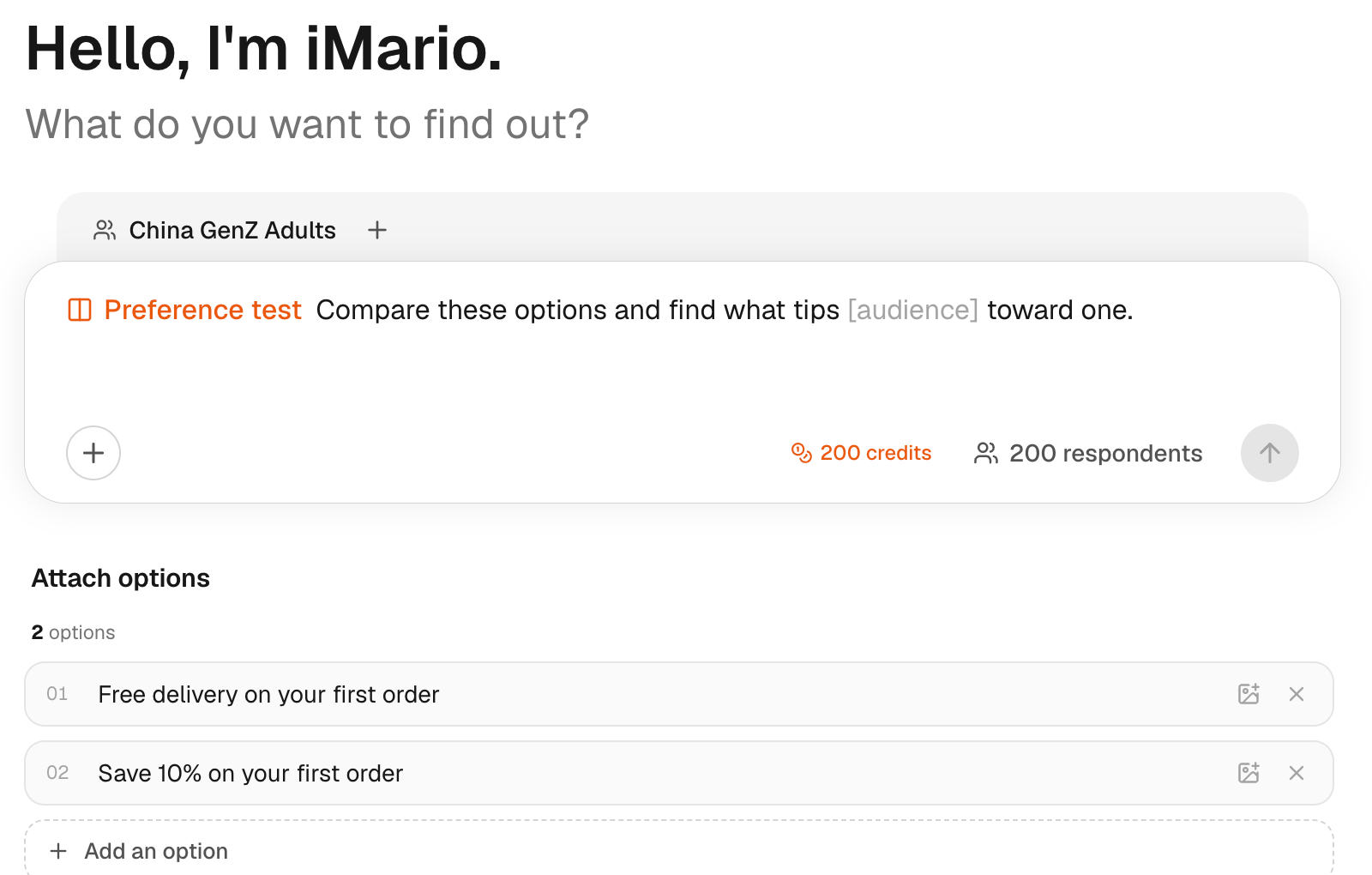
- In the sidebar, click New Task.
- Click Add content (+) in the composer, then click Preference test. The composer shows the preference test goal, with Option 1 below it.
- Enter the first option: type its text, or click Add an image to option 1 and choose an image. Give it a short label.
- Click Add an option for each further option. You need at least two.
- Click Select target audience and choose the audience. The chip shows the audience, the respondent count and a credit estimate.
- In the goal, replace the placeholder with your audience and what you want to learn.
- To change the number of respondents, click the respondent count and type the new number.
- Check the respondent count and the credit estimate, then click Run.
For example, to ask which offer a reader would look into first:
- "Free delivery on your first order."
- "Save 10% on your first order."
Make each option complete enough to judge on its own, and use labels you will recognize in the result. An option can include an image, or be an image only; image-only options are labeled automatically.
Use all text or all images in one comparison. iMario won't run a picture against a line of text, or the same option twice. If the options aren't alternatives for one choice, such as a brand name against a slogan, iMario says so and asks before running.
Compare several images or messages side by side, run a preference test and see which one wins. Click the highlighted control in each step, or use Next.
The setup steps in this walkthrough are also written out as numbered steps above.
Make the comparison interpretable
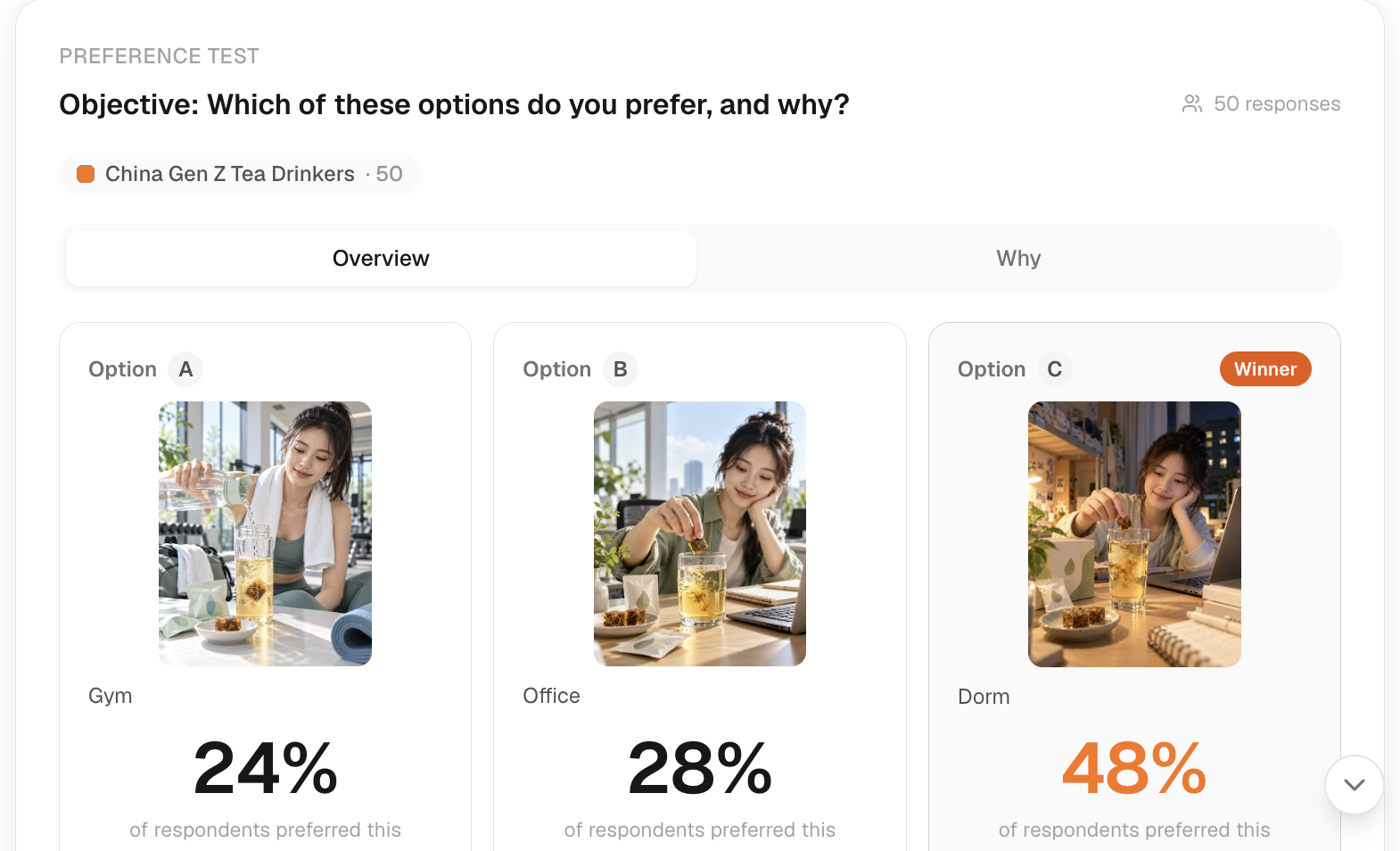
On the Overview tab, each option shows the share of respondents who preferred it, and the leading option is marked Winner. Click Why to read the reasons.
Keep the audience and the question the same for every option. If the alternatives differ in several ways, report the result as a preference for the whole version; it doesn't isolate one headline or image. A narrow gap is a reason to investigate further, not proof of a winning version. To see who preferred each option, use Explorer.
Cost and next steps
Check the credit estimate before you click Run. A preference test is charged differently from a multi-select survey question, which is charged per option. See Pricing & credits.
When you iterate, record what changed between versions. Confirm the result with a real test and an appropriate outcome; don't report an AI-simulated preference as predicted conversion. See Validate with real world data.