

Your First Study
Ask one question of an existing audience, inspect its result, and choose a useful next step.
This walkthrough runs one open question using an audience already available to your workspace. You do not need to create individuals, upload customer data, or build a canvas.
1. Choose an audience
Open New Task in the sidebar. Open the audience selector above the composer and choose one audience you can access. Read its definition before continuing: a broad national population and a narrow customer segment answer different questions.
If access is locked, choose an available audience or review the separate access purchase. A study's credit estimate does not include unlocking an audience.
2. Write one question
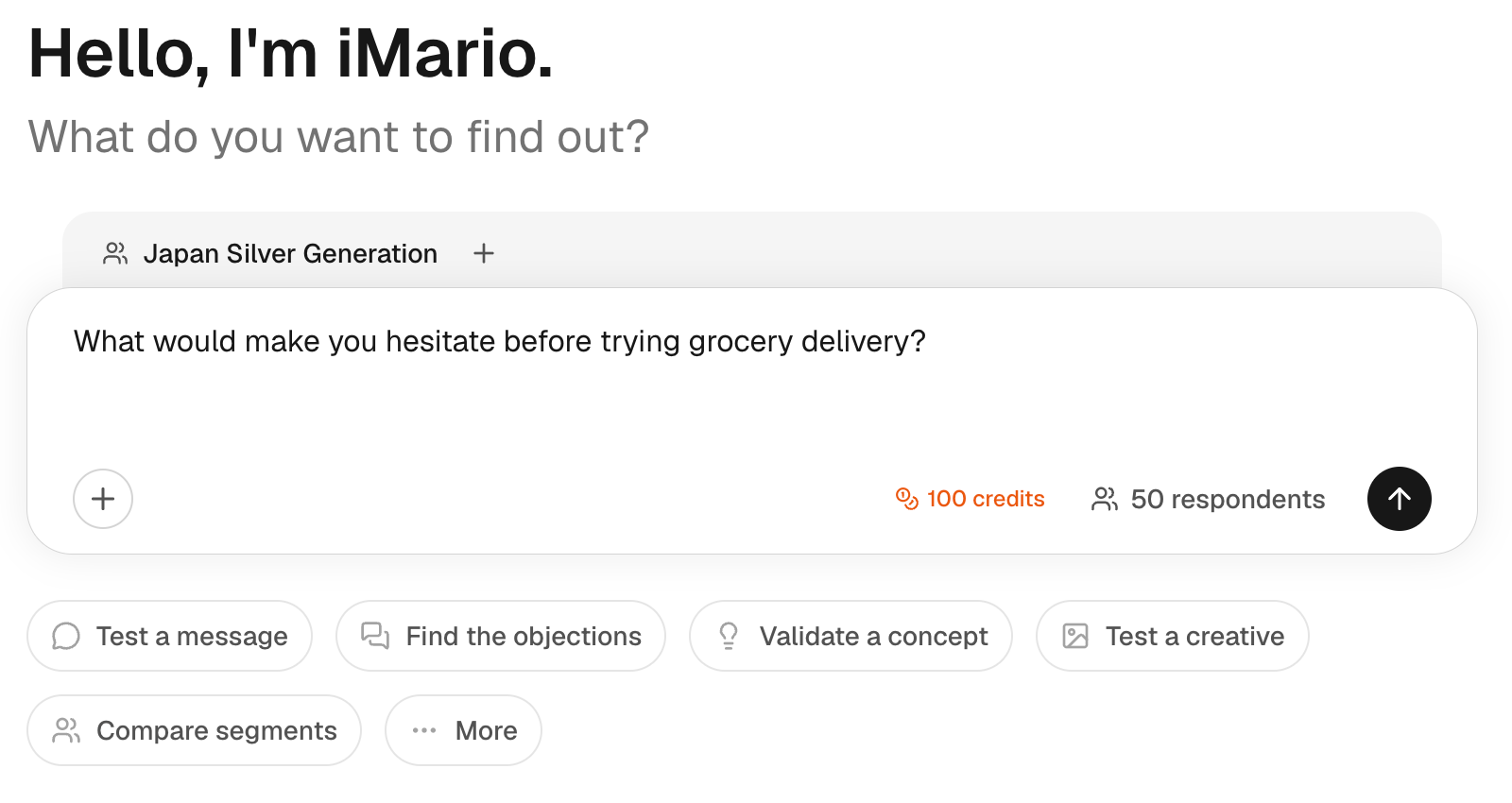
Leave the task on Default in the + menu. For example:
What would make you hesitate before switching your main grocery shopping to a delivery service?
Use one question with a clear context. Avoid combining price, brand, packaging and purchase intent in one sentence. The system determines the question format from your request; for fixed question types and options, use Survey.
3. Review size and cost
Check the respondent control beside the run action. An open question has a recommended panel of 50; adjust the count before running if needed.
At 2 credits per respondent, one open question with 50 respondents costs 100 credits, before any report generation. This is an example, not a fixed price for everything typed into the composer. Check the estimate for your actual task, especially after changing its type or audience count.
What would you like to find out?
What would make you hesitate before trying grocery delivery?
Preview only · no research is submitted
Prepare your first study
Use the selector above the composer. Read the definition before selecting.
4. Run and inspect
Submit the task. It opens as a conversation and shows research progress followed by the result. Read the question and audience attached to the result before interpreting its themes or percentages.
Open the result's analysis to inspect Explorer. Read individual answers alongside the summary. Look for a recurring objection, a disagreement, and an answer the summary does not fully capture.
5. Continue deliberately
Ask for an explanation of the existing result, or ask a new research question:
Ask the same audience which of those concerns would actually stop them from trying the service.
New research can incur another charge. Report generation is also separate: for a scope containing only this 100-credit run, the report costs 50 credits. You can learn from the result without requesting a report.
If you cannot continue
- No suitable audience: see Choose an audience.
- Not enough credits: reduce the scope or review Usage.
- Unexpected answers: check the audience definition and question wording before rerunning.
- You see a node canvas: see Older workflows.
Next, choose a research method or explore the result.