

Explore Results
Select answers, inspect overlapping groups and break down results in Explorer.
Explorer is the analysis panel behind a result. Use it to see who gave an answer, combine answers into a group and compare that group by another question or a demographic.
Select a group
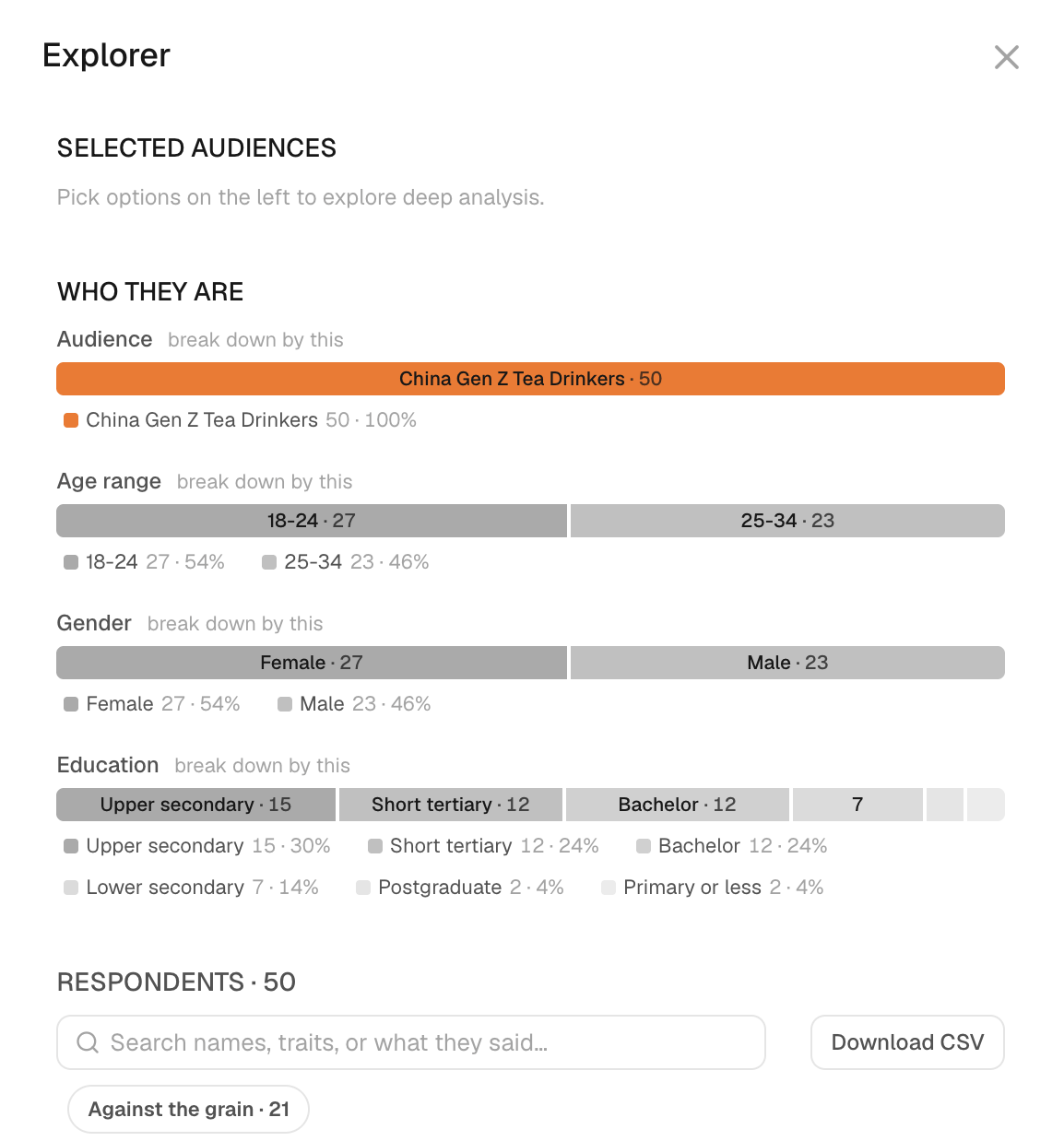
- In a result card, click an answer's bar. Explorer opens beside the result and shows who chose that answer, under Selected audiences.
- To add another answer from the same question, ⌘-click its bar. The group now includes people who chose either answer.
- Read the respondent count at the bottom of the panel. It is the size of the group you are now looking at.
- To start again, click Clear.
How selections combine:
- Answers from the same question combine with OR: people who chose any of them.
- Answers from different questions combine with AND: people who meet every condition.
- Choosing a demographic value narrows the group further.
For example, "price" OR "delivery speed" on Q1, AND "would not try" on Q2, selects people who meet both question conditions. It does not add the two questions' percentages together.
To keep the group for later, click Add Segment. To export the respondents, click Download CSV, after checking the active selection.
Select answer groups in a survey result, break them down by another question, and read what individual respondents said. Click the highlighted control in each step, or use Next.
The steps in this walkthrough are also written out as numbered steps on this page.
Break down the result
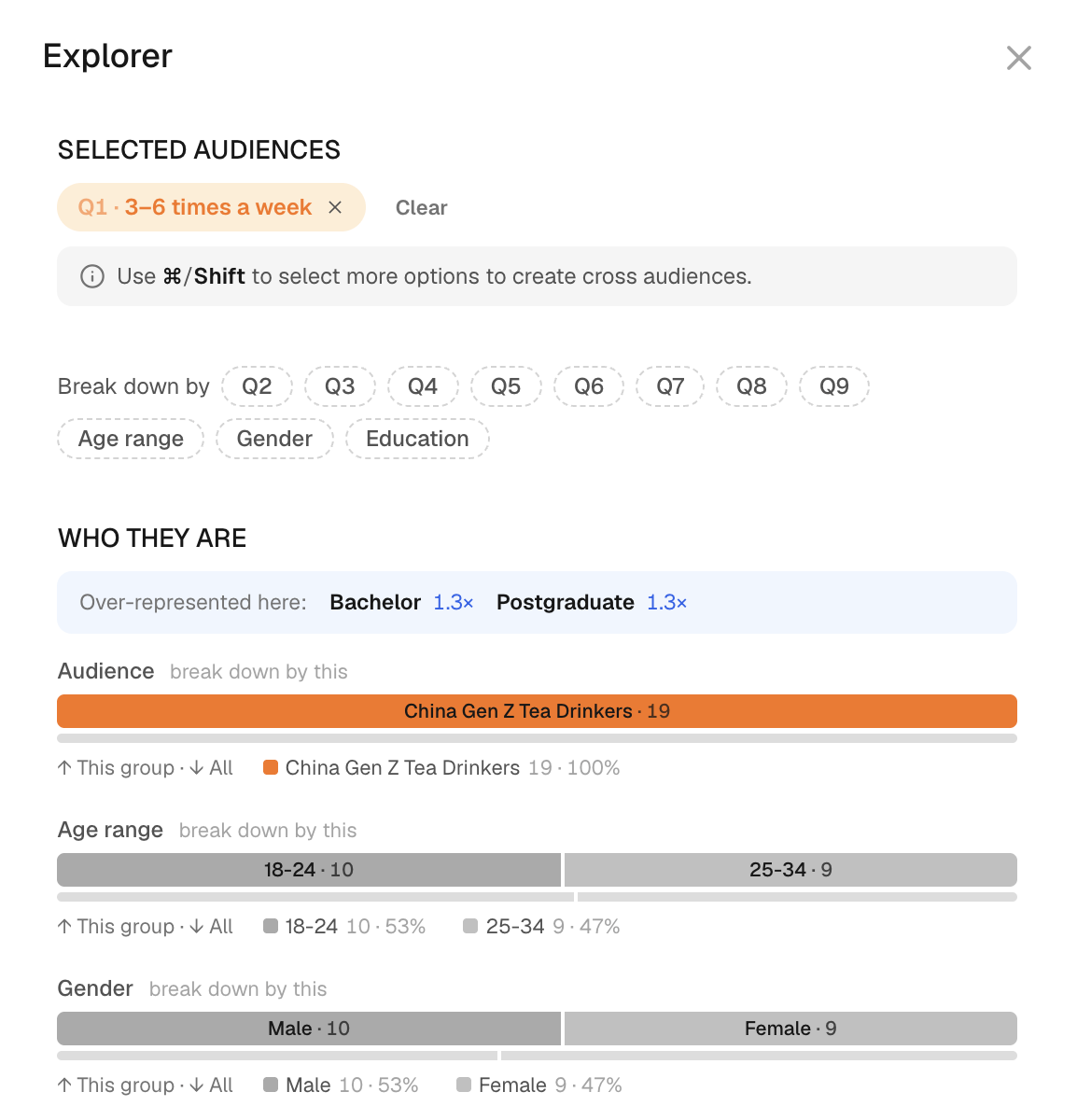
- With a group selected, click Break down by.
- Choose a demographic, such as Gender, or another question. Explorer shows a table for the selected group.
- Read each column's label and base before you quote a percentage.
A small cell may be too thin to support a share, and an empty or hidden value is not zero. A relationship between two questions needs the same people in both. You can't create one by placing two separate totals side by side.
Read individual respondents
- In the respondent list, click Answers on a card to read that person's answers.
- To ask that respondent a question, click the chat icon on their card. See Rehearse a sales conversation.
A chat reply is a new response, given after the original run. Keep it separate from the answers you are analyzing.
AI analysis gives an interpretation of the selected group. It is a separate, charged action; see Pricing & credits. An explanation is an interpretation, not independent evidence.
Continue
Compare the group with observed answers in Validate with real world data, or include the runs in a report. When you share a subgroup finding, state the selection that defines it.