

Workspace & Credits
Track Usage
Check the available balance and trace research, report and refund events.
The Usage page shows your available credits and what used them. Check it before you plan a study, or when a charge looks wrong.
Read the usage page
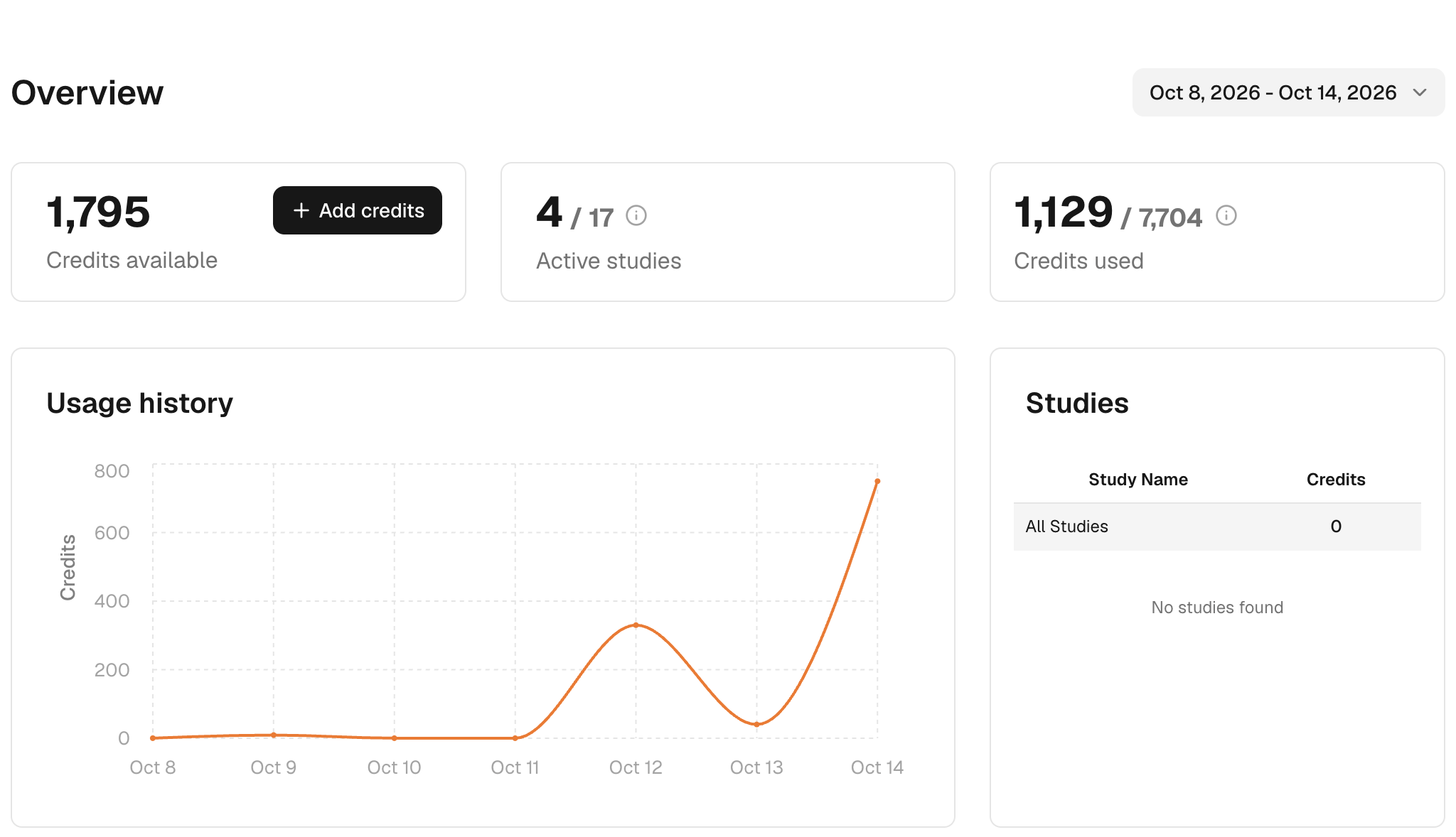
- In the sidebar, click Usage.
- Click the date range at the top right and choose the period to review.
- Read the three cards: Credits available, Active studies and Credits used. To buy more, click Add credits.
- Read Usage history for credits used per day, and Studies for credits per study.
- Scroll to All Transactions to find individual charges and refunds. Use its filter to show one type.
To trace a charge, match it to the task and the time it ran. Don't compare only the balance before and after: other work in the workspace uses the same credits. Older transactions can show category names that are no longer used. They don't indicate current prices.
Before you run again
- Check that Credits available covers the task's estimate, and that you can use the audience. Audience access and research credits are separate.
- If a run failed, open the task and check for a refund in All Transactions before you run it again.
- Running a task again, or rewriting a report, is charged as new work. Clicking again doesn't resume an earlier request.
Ask for help
For a charge you can't explain, send the task or report name, the time of the transaction, the amount and any error message. Never send API keys or connector secrets. See Support and Pricing & credits.